yt-dlp -o "%(playlist_index)s - %(title)s.%(ext)s" [PLAYLIST_URL]
It may also help to use
yt-dlp --cookies-from-browser firefox -o "%(playlist_index)s - %(title)s.%(ext)s" [PLAYLIST_URL]
yt-dlp -o "%(playlist_index)s - %(title)s.%(ext)s" [PLAYLIST_URL]
It may also help to use
yt-dlp --cookies-from-browser firefox -o "%(playlist_index)s - %(title)s.%(ext)s" [PLAYLIST_URL]
Allow non admins to stop / start the VPN
Install wireguard
From admin cmd.exe (Use your .conf file and check the service name before running sc.exe)
wireguard.exe /installtunnelservice vpnConfigurationFile.conf
sc.exe sdshow WireGuardTunnel$SERVICENAME
This produces something like:
D:(A;;CCLCSWRPWPDTLOCRRC;;;SY)(A;;CCDCLCSWRPWPDTLOCRSDRCWDWO;;;BA)(A;;CCLCSWLOCRRC;;;IU)(A;;CCLCSWLOCRRC;;;SU)S:(AU;FA;CCDCLCSWRPWPDTLOCRSDRCWDWO;;;WD)
Using
https://woshub.com/set-permissions-on-windows-service/
Add RPWP to the IU (stop / start service to Interactive Users) and run
sc.exe sdset WireGuardTunnel$SERVICENAME D:(A;;CCLCSWRPWPDTLOCRRC;;;SY)(A;;CCDCLCSWRPWPDTLOCRSDRCWDWO;;;BA)(A;;CCLCSWLOCRRCRPWP;;;IU)(A;;CCLCSWLOCRRC;;;SU)S:(AU;FA;CCDCLCSWRPWPDTLOCRSDRCWDWO;;;WD)
Restart the service
Then you can start / stop with
sc start WireGuardTunnel$SERVICENAME
sc stop WireGuardTunnel$SERVICENAME
Usage:
./dnscheck.sh < domainlist.txt
#!/bin/bash

while IFS= read -r DOMAIN; do
     dnsrecon -d $DOMAIN -D /usr/share/wordlists/dnsrecon.txt -v -t brt -c $DOMAIN.txt -f -n 1.1.1.1
done
Grab:
7zip – https://www.7-zip.org/download.html
LZMA SDK – https://www.7-zip.org/sdk.html
UniExtract2 – https://github.com/Bioruebe/UniExtract2?tab=readme-ov-file
SNMPTester – https://www.paessler.com/tools/snmptester
MT.exe – https://github.com/jvincke/mt/blob/master/x64/mt.exe
Install 7zip
Extract Paessler SNMP Tester.zip to c:\install\
Extract UniExtract2 to c:\install
Run UniExtractUpdater_NoAdmin.exe and allow it to update
Run UniExtract.exe
Select Next, Next, Finished in the wizard to skip initial setup.
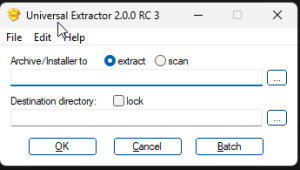
Select Archive/Installer to extract
Select the “c:\install\Paessler SNMP Tester Setup.exe” file
Select the destination directory as “C:\install\Paessler SNMP Tester Setup”
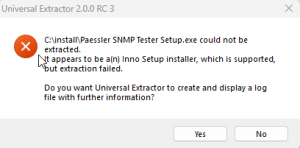
The SNMP Tester files will be extracted to that directory.
If you receive a message that UniExtract is not compatible with the version of installer, try updating UniExtract.
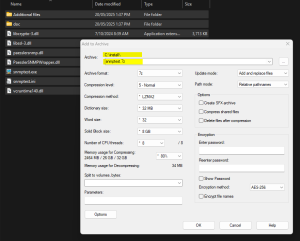
Select all the files in the SNMP Tester Extracted directory, and create a 7z archive in the c:\install directory. Name the file snmptest.7z. Ensure that the snmptest.exe file is the root of the 7z archive, not a subdirectory.
Extract the 7zSD.sfx file from the LZMA SDK \ bin directory to c:\install
Copy the mt.exe file to c:\install
Create c:\install\SNMPTester.manifest containing:
<?xml version="1.0" encoding="utf-8"?>
<assembly xmlns="urn:schemas-microsoft-com:asm.v1" manifestVersion="1.0" xmlns:asmv3="urn:schemas-microsoft-com:asm.v3">
   <compatibility xmlns="urn:schemas-microsoft-com:compatibility.v1">
      <application>
         <!--application support for Windows Vista -->
         <supportedOS Id="{e2011457-1546-43c5-a5fe-008deee3d3f0}"/>
         <!--application support for Windows 7 -->
         <supportedOS Id="{35138b9a-5d96-4fbd-8e2d-a2440225f93a}"/>
      </application>
   </compatibility>
   <trustInfo xmlns="urn:schemas-microsoft-com:asm.v2">
      <security>
         <requestedPrivileges>
            <requestedExecutionLevel level="asInvoker" uiAccess="false"/>
         </requestedPrivileges>
      </security>
   </trustInfo>
</assembly>
Create c:\install\config.txt file containing:
 ;!@Install@!UTF-8!
Title="SNMP Tester"
RunProgram="snmptest.exe"
;!@InstallEnd@!
You should have a number of files in c:\install
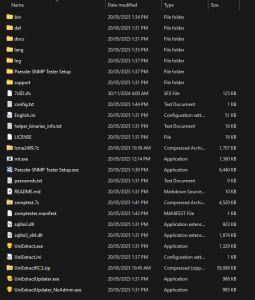
Open a command prompt, navigate to c:\install and run the following command
mt.exe -manifest "SNMPTester.manifest" -outputresource:"7zSD.sfx;#1"

copy /b 7zSD.sfx + config.txt + SNMPTest.7z SNMPTester.exe
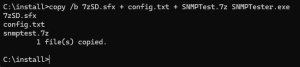
That will output a self extracting archive (c:\install\SNMPTester.exe) that runs snmptest.exe and remove the temp files upon completion.
You can move c:\install\SNMPTester.exe to where it is needed and remove all files in c:\install
References:
https://superuser.com/questions/42788/is-it-possible-to-execute-a-file-after-extraction-from-a-7-zip-self-extracting-a
https://superuser.com/questions/730242/7zip-self-extracting-executables-require-admin-privileges-and-trigger-compatib
You have a file called input.csv file containing
fname, lname, email, postcode
john,smith,johnsmith@example.com,4000
jane,doe,janedoe@example.com,4112
and you want to get the lname element
while IFS=',' read -r a1 a2 a3 a4
do
echo "$a2" >> lname.csv
done < input.csv
Source: https://unix.stackexchange.com/questions/106047/extract-the-4th-column-from-a-csv-file-using-unix-command
Some devices were failing the Intune “Default Device Compliance Policy”. This in turn was preventing access to 365 resources due to a Conditional Access policy requiring a compliant device. The policy was failing with “Enrolled user exists”


The non complaint policy showed a logged in user as an account that was disabled.
Logging on as the normal user, navigating to: https://portal.manage.microsoft.com/ and selecting the device, performing a sync from the intune portal and then waiting 30 minutes or so the device was now showing compliant.
References:
https://www.reddit.com/r/Intune/comments/gntqmk/noncompliant_devices_enrolled_user_exists/
Quick and dirty script for this, as it was a one off:
The popups with ‘Got it’ that constantly appear
Disable them using the following:
Windows Registry Editor Version 5.00
[HKEY_CURRENT_USER\Software\Microsoft\Office\16.0\Common\TeachingCallouts]
“DontShowTeachingCallouts”=dword:00000001
No corresponding HKLM policy registry location exists – so its a per user setting.
Computer\HKEY_CURRENT_USER\Software\Microsoft\Windows\CurrentVersion\Search
Create Dword – BingSearchEnabled value of 0
Create Dword – CortanaConsent value of 0
=IF(COUNTIFS(Sheet1!A$1:A$122,C2)>0,”yes”,”no”)
where sheet1 is the lookup sheet
c2 is the value to lookup